


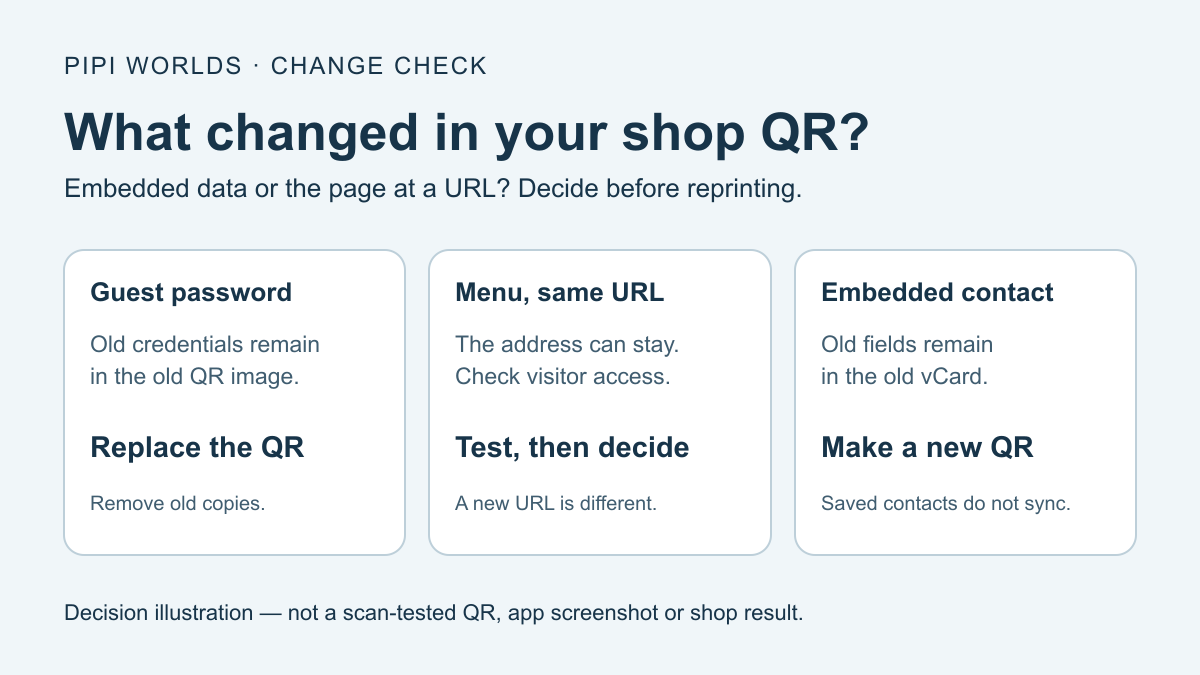
You changed the guest Wi-Fi password, but the counter card still points to the old one. Meanwhile, a menu price edit at the same web address may need no new QR image at all. The difference is what the code contains: embedded data or a URL. Start there, rather than making three codes because every shop supposedly needs them.
This guide is for an owner maintaining an existing sign. It is not a timed setup promise, a network-security audit or evidence that customers will leave more reviews. The free QR generator prepares a code without installing an app or signing up. Do not enter actual credentials into a tutorial example or send them to us.
Three changes: decide before reprinting
Try each decision before revealing the explanation. These are hypothetical examples, not automatic checks of your router, website or phone.
A. The guest Wi-Fi password changed
Make a new QR and replace the old copies. The existing Wi-Fi image still carries the old credential text. Reprinting that same file does not update it. Check the new guest network on intended phones; do not publish staff or router-admin credentials.
B. Menu prices changed at the same URL
The URL QR can stay if that exact address still works for visitors. It contains the address, not the menu text. Test outside the owner's signed-in session and confirm the current prices. If the address changed, make a new QR unless you control and verify a working redirect.
C. A phone number in an embedded vCard changed
Make a new vCard QR. It contains the old contact fields. It will not update a contact someone already saved; they must review and save the new information themselves. A URL to a hosted contact page is a different design.
Keep separate labels such as Guest Wi-Fi, Menu and Business contact. One static code carries one payload; it does not perform all those actions simultaneously. A page can offer multiple links, but that adds a webpage and access checks, not a magical multi-action QR.
Wi-Fi: readable credentials, not encryption
The current tool uses the ZXing Wi-Fi text convention. This fictional example is generated by our unchanged builder. Do not use it as a real password:
WIFI:T:WPA;S:Cafe-Example-Guest;P:DEMO\;ONLY;;
S holds the network name, P the password and T the selected security label. The semicolon in this demonstration password is backslash-escaped. Correct escaping is not a phone-connection test. The code does not change router settings or encrypt its contents. Anyone who obtains the image can read its credential text.
The FTC distinguishes a network password from the router’s administrative password and recommends a separate guest network. Use only credentials intended for guests. Keep staff, POS, cameras and administration out of the printed payload. A second network name is not a guarantee of isolation: check your router’s actual guest/internal-access settings with its documentation or administrator. The FTC source is home-network guidance, not a certification of a shop’s POS configuration.
The generator’s WPA/WPA2 option is a payload label, not a claim that every WPA2/WPA3 or enterprise configuration works. WEP is outdated; an open network has no password protection. Do not weaken protection to make a QR connect. If the intended router/phone combination cannot use the code, keep a manual guest-connection method and consult the router documentation.
Changing the guest name, password or security fields means preparing a new QR. Replace the counter, table and other copies you actually distributed; a new file does not revoke an old copy or disconnect an already connected device.
Menu: changing content is different from changing an address
A static URL QR can contain a menu webpage address. Editing that page at the same URL does not alter the address encoded in the image. Removing the page, changing its URL, letting a domain lapse, or changing access restrictions can still break the destination.
For a shared file, test as a visitor rather than relying on the owner’s logged-in view. Check that customers can reach the intended menu without a private account or an unexpected permission request. Do not make private files public simply to get a QR working. Hosting, redirects and sharing permissions remain outside this generator.
If you can keep a stable address you control, you can update its menu content and retest without reprinting the QR. If you cannot, a new QR may be necessary. A static code does not host the menu, guarantee a permanent link or provide a tracked redirect service.
Contact: publish only the fields you intend to share
Choose a public business contact, not the owner’s private number by default. The current tool builds vCard 3.0 text; RFC 2426 specifies that format. This minimal fictional example matches the generator’s one-name field, organization and website inputs:
BEGIN:VCARD
VERSION:3.0
N:Example Cafe;;;;
FN:Example Cafe
ORG:Example business
URL:https://example.com/menu
END:VCARD
The example domain is a documentation placeholder, not a live menu to visit. A compatible contact app may offer to review and save the details. We did not test saving a contact on visitors’ phones. Include phone or email only if you intend anyone with the image to receive it; neither field is mandatory in this example.
Change an embedded field → generate a new vCard QR. It does not remotely update contacts already saved. Updating a separate hosted contact webpage is like the menu URL case, not like updating embedded vCard data.
Counter-card proof log
Use this as a paper note beside the actual final-size sign. Not checked is a valid status: leave the sign off the counter until its intended action has been checked. This table is not an automatic scan certification.
| Check | What to verify | Your result |
|---|---|---|
| Intended payload | Guest network, current menu URL or public contact fields | Not checked / correct / replace |
| Test date / phone | Record the date and the actual phone/camera used | Write your own test note |
| Decoding | Camera recognizes the intended action and text | Not checked / works / fails |
| Destination or connection | Correct guest connection, public menu or reviewed contact fields | Not checked / works / fails |
| Final material | Actual print in its stand, laminate and counter lighting | Not checked / works / fails |
| Replacement copies | Old Wi-Fi/contact signs removed after embedded data changes | Not checked / done / still present |
DENSO WAVE calls for a clear four-module quiet zone on every side. Keep labels, trim and frames outside it. Its module-size guidance explains why payload length, printer resolution and reader capability matter. A total width such as 3 cm is not a universal minimum or a scan guarantee.
DENSO WAVE’s FAQ recommends black on white and testing colored designs. The site’s color ratio is a reference: W3C’s normal-text contrast criterion is for normal text, not a QR scan threshold or a scanner acceptance test. The ratio is not a scan-pass threshold. Test the actual material, not just the screen preview.
DENSO WAVE’s error-correction guidance gives approximate codeword restoration levels L/M/Q/H of 7/15/25/30%. H can require a larger symbol; at a fixed print width that can make modules smaller. It is not permission to cover 30% of the printed surface with a logo or damage. Retest after changing payload, dimensions, colors or the physical stand.
A review link is optional, not a promised result
If your business uses Google reviews, its current official instructions offer a review link or native QR from a computer browser: Read Reviews → Get more reviews. You do not need this generator to obtain Google’s own QR. A copied review URL can also be used in the generator’s URL mode; confirm the correct business and actual visitor sign-in flow before printing.
Do not offer gifts or discounts in exchange for reviews. This is not a review-count or sales guarantee. Other services have their own policies; the Google flow is not a universal template for them. We did not access your business account or reproduce a customer review submission.
Prepare one action, then retest it when something changes
Use the free QR generator for the payload you need, not a preset bundle of codes. It generates in the browser and does not save input history or create a settings-sharing URL. It does not change router access, host a menu, verify guest isolation, update saved contacts or certify a print. Page-visit statistics are separate; see the privacy notice.
You can use Save for later above, then reopen this proof log from your saved articles when the guest password, menu or contact details change. This browser list is not a reminder service.
This guide was prepared with AI writing assistance and primary-source/code checks, not human network or print review. Its original cover is a change-decision illustration, not a scannable sample, physical test or real customer result. Old artwork and exports are no longer support for this revised guide and remain withheld from outbound republication.