


Before you convert · Photo to coloring page
A good photo isn’t always an easy coloring page
Before switching tools, compare two photos. Start with one clear subject, a quieter background and enough room around the edges.
Start with three questions
- What do I want to color? Can I see that subject without zooming in?
- What else will become lines? Look for busy patterns and overlapping objects.
- Are the important edges in frame? Check the ears, paws, petals or handle you want to keep.
These are starting points, not a promise of a perfect conversion.
A quiet background still leaves details to check
Here is the corgi pair already published in our coloring-page collection. The source photo is AI-generated, not a customer photograph. These are existing files, not a new app conversion test, a benchmark or a promise about your own photo.
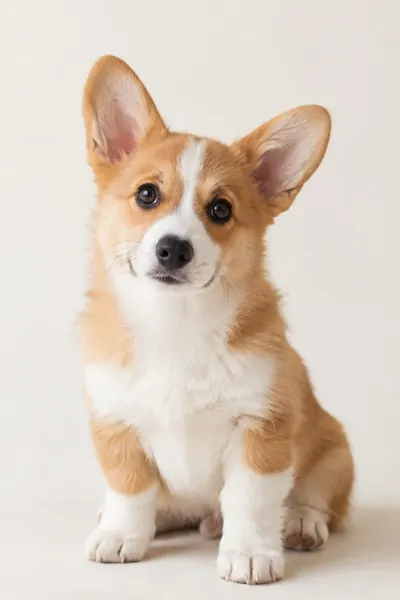
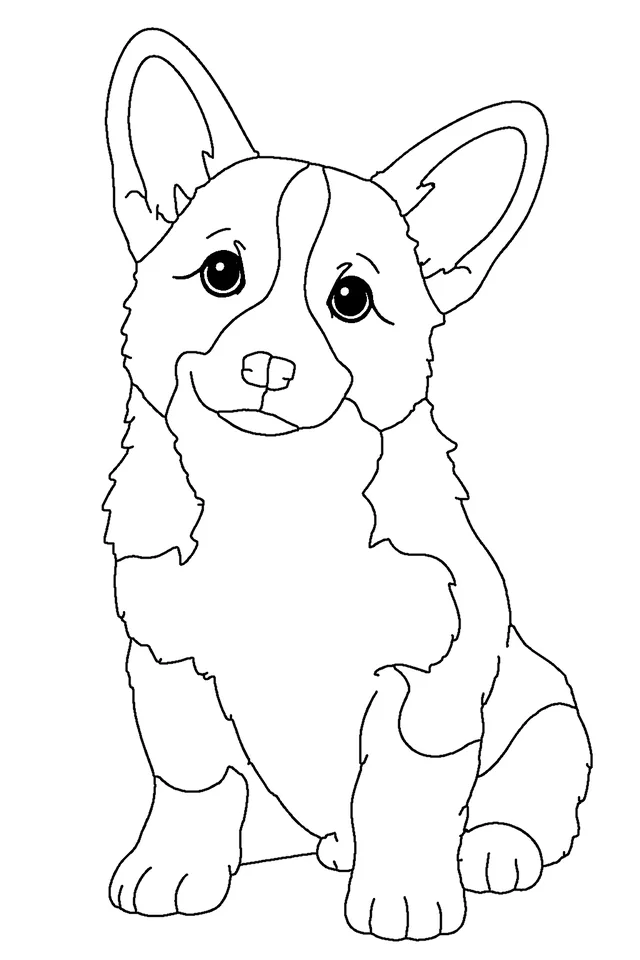
- Background: the pale wall has little to compete with the dog. That helps you identify the subject, but does not establish that the outline preserves every detail.
- Coat: soft shading and individual hairs become broad white areas with drawn boundaries. If you want to preserve the photograph’s texture, this outline is not a tracing of it.
- Face and paws: the eyes stay dark, while the dark nose becomes an outlined shape. The paws and facial lines are restyled. Compare these parts before deciding whether the result suits your activity.
Make one decision before coloring: do you want a recognizable animal with larger spaces to color, or a close likeness of a particular pet? This sample can illustrate the first choice; it cannot prove the second. You can choose the existing corgi page if you like its style, or reject a result whose details matter to you. Do not assume its areas are closed for a digital fill tool.
Open the corgi A4 PDFObservation added October 15, 2026 · PiFl Labs with AI assistance, using the two existing published files. No new conversion or independent app comparison was performed.
Want a page you can color now?
Skip photo selection and choose a ready-made animal coloring page instead. Open an A4 or US Letter PDF, or a PNG, without uploading a photo, signing up or installing an app.
The sample source photos are AI-generated, not customer photographs. The collection shows the source images and explains how the outlines were made.
Browse free animal coloring pagesAdded October 13, 2026 · Ready-made coloring page collection linked.
Compare two photos here — no upload
Turn the three questions into your own notes
Keep two photos in your own gallery and call them A and B. For each one, mark what you can see. This worksheet cannot see your photos, test a converter or decide which image is best.
Controls are preparing. If they stay disabled, use the three questions above or the paper checklist below.
Only the choices in this open page are used. This worksheet does not save or send them to a server or app. Your browser may restore fields when you return; review them again. Normal site page-view analytics are separate.
No observations reviewed yet.
Photo A: Not reviewed
Use “Review my observations” for the current choices.
Photo B: Not reviewed
Use “Review my observations” for the current choices.
Before uploading to any converter, check permission and privacy. After converting, inspect the actual result. Neither step is replaced by this worksheet.
Updated October 10, 2026 · On-page observation worksheet added; not a conversion test.
Choose the shapes you want to color
A flower, a mug or one pet can be a manageable first subject. Compare a close view with a wider scene. Keep a copy of the original if you crop, and leave the parts you care about inside the frame.
Choose for the activity, not just the photograph. If you want larger spaces to color, look for broad petals or a simple object. Fine fur, leaves and small decorations may suit someone who enjoys details, but can make a first attempt feel busy.
Look behind the subject
A patterned tablecloth or a shelf of objects can compete with the shape you want to keep. Compare the same flower on a plain surface with a photo of several overlapping plants.
This is a composition suggestion, not a tested ranking of conversion tools. Adobe’s guide to choosing photographic backgrounds explains how the background can support or distract from a subject; it does not test coloring-page results.
Check the photo—and then the result
At a small size, can you still follow the outline? At full size, are important edges blurred or hidden in shadows? A pale object against a pale wall may be harder to distinguish than the same object against a different background.
After conversion, inspect the parts that matter before coloring. AI may simplify or redraw details. If a face, paw or petal looks wrong, you do not have to use that result. Try another composition or another photo.
Photo choice cannot fix every defect. It does not guarantee even black lines, remove gray residue or close gaps for fill tools. Those also depend on the converter and its output. This guide does not claim that a particular app update has solved them.
Keep the free checklist
Open the image to save or print it from your browser. No signup, purchase or app is needed.
Open checklistAI-created flower illustrations—not customer photos or actual app conversion results.
Compare two photos on one free A4 sheet.
Open A4 PDF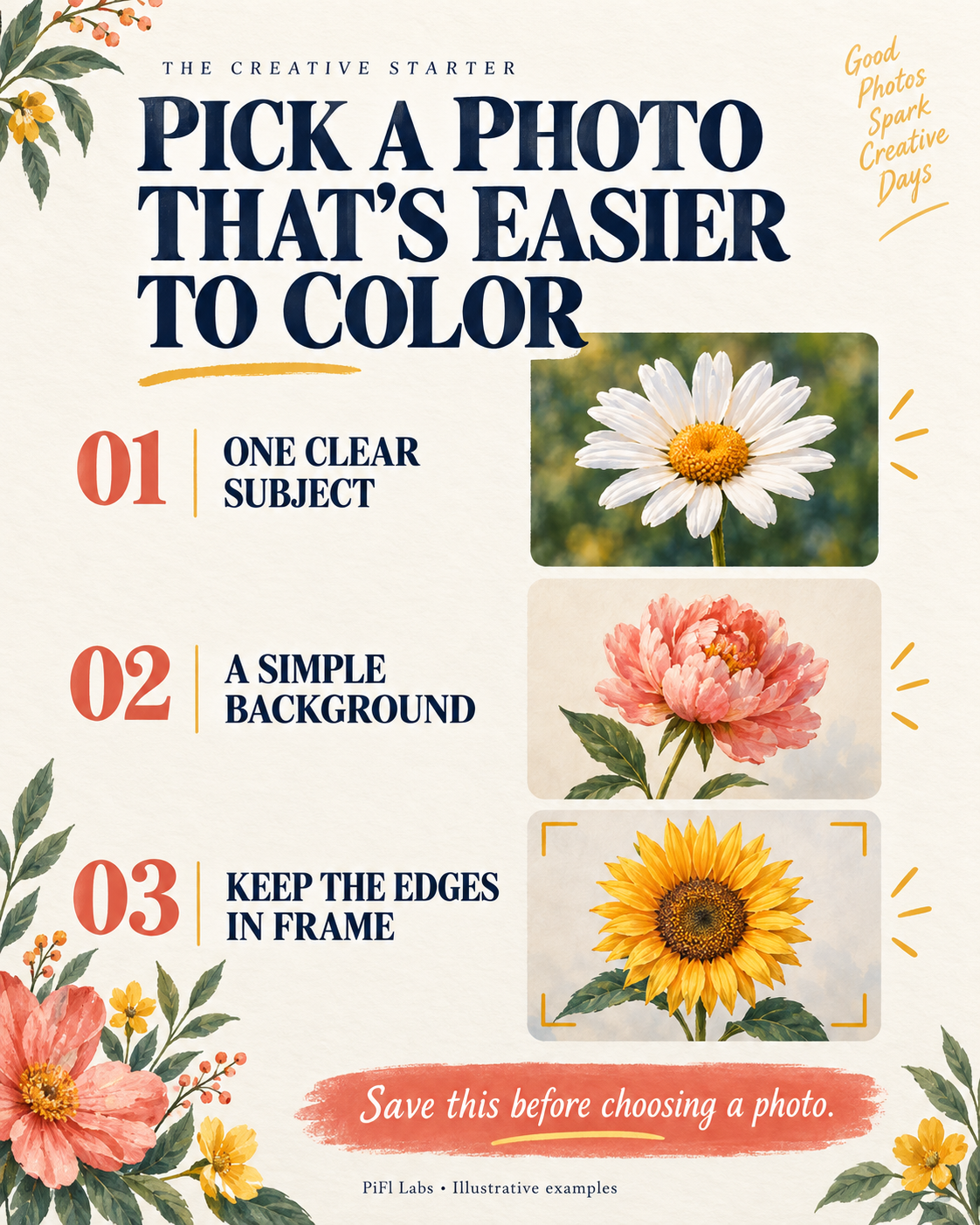
Keep this guide for your next photo
Save the guide’s address, not your photos or worksheet choices. When you reopen it, review the photos again; this saved list is not a record of your observations.
Added October 10, 2026 · Read-later link for this guide.
Before uploading any photo
Prefer a photo you took or have permission to use. Check the people, artwork and information visible in it, too. Avoid exposing faces, addresses, name tags or documents you do not need to include.
If you use a shared image, read its specific license for attribution, editing and redistribution conditions. Creative Commons licenses do not all permit the same uses: see the official license descriptions. A free download alone is not permission for every use. This guide is not legal advice or a rights clearance.
Before using an AI service, check its current privacy policy and help pages: where the image goes, retention, training use and deletion options. If the explanation is unclear, pause rather than uploading a sensitive photo. We do not certify a service’s privacy practices here.